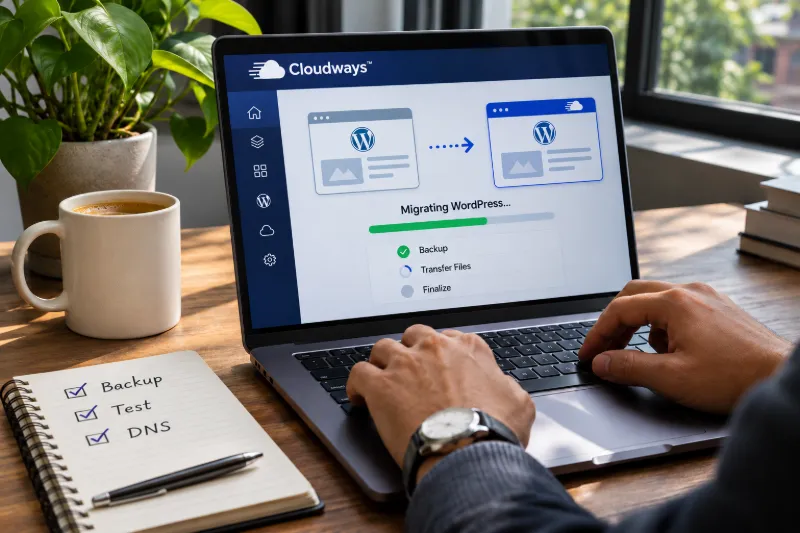
A successful hosting move is more than copying files. Your pages need to load, forms need to reach the right inbox and new orders must end up in the correct database. The safest approach is to prepare the destination, test a copy and plan the handover before changing where visitors go.

This is a planning guide based on Cloudways documentation. Dashboard labels and migration options can change; use the linked official instructions for the exact workflow shown in your account.
1. Inventory the site and its dependencies
List the WordPress installation, database, uploads, active theme, essential plugins, scheduled tasks and any external services. Include email delivery, payment gateways, webhooks and licensing connections. Note who manages DNS and where business email is hosted.
Check the site's PHP requirements and any custom server rules. Cloudways documents an important distinction between its Hybrid Stack and Lightning Stack: the former supports .htaccess files, while the latter uses NGINX and does not. If redirects or access rules depend on .htaccess, resolve their destination configuration before migration.
2. Prepare a backup and a suitable destination
Take a current backup of both the database and files, and keep a copy outside the hosting account being changed. Record how you would restore it. A backup you cannot locate or use is a weak recovery plan.
Create a compatible WordPress application on Cloudways and check available storage. For a WooCommerce store, use the appropriate application setup. Confirm the target is expendable before copying: migration can overwrite existing destination data. Do not point the live domain at it yet.
3. Choose the migration route
Cloudways provides a WordPress Migrator plugin and managed migration options. If you use the plugin, follow the official guide and obtain connection details from your own Cloudways application. Enter credentials only into the verified migration workflow, and keep them out of public documents or screenshots.
If you request assistance, explain what must be tested: checkout, subscriptions, booking flows, member login or unusual integrations. Ask Cloudways to confirm the scope and any charge for your specific migration rather than assuming every case has identical terms.
4. Validate the copied website before DNS changes
Use the supported preview or local testing method in Cloudways documentation. Check more than the homepage: open important articles, images, category pages, search results and redirects. Sign in and submit a test form. Confirm HTTPS behavior and inspect for broken assets.
For a shop, test cart calculations, shipping, tax rules and payment behavior in the gateway's test mode. Make sure test actions cannot send real fulfilment requests or charge customers. Record failures and resolve them while the old site remains available.
5. Plan the final data handover
A first copy becomes outdated if the original site continues receiving orders, comments or registrations. Choose a quiet migration window and agree how recent changes will be synchronized. A busy store may need a controlled pause or coordinated final sync.
Cloudways' onboarding guide warns that changing hosting does not automatically update DNS or copy later changes from the old server. Confirm the latest records exist on the destination before directing visitors there.
6. Update DNS and verify the live domain
Follow the platform's domain and DNS instructions. Change only the records required for the website; preserve unrelated email records. Check the live domain, certificate, redirects, forms and transactional email once traffic reaches Cloudways.
Keep the previous hosting account available until DNS propagation and the latest data have been verified. Then review backups, monitoring and recovery access. Only retire the old service after the handover is complete.
Sources and next steps
Use the official Migrator guide, WordPress onboarding guide, and managed migration instructions. Checked October 25, 2026. See Cloudways offers for separately listed promotions. Remaxcode may earn a commission through affiliate links.

Cloudways
30% Off for 3 Months With Promo Code
New customers save 30% on Cloudways hosting for the first 3 months with promo code SAVE303.
Cloudways
Lifetime Deal: 75% Off Advanced Support
Get Advanced Support for $25/month instead of $100/month as a lifetime deal.
Cloudways
Free Trial – No Credit Card Required
Try Cloudways managed cloud hosting for free without a credit card.
Cloudways
Pay-As-You-Go Hosting, No Contracts
Pay only for the resources you use, with no long-term contracts.
Cloudways
Free SSL and 24/7 Expert Support on All Plans
Every Cloudways plan includes free SSL certificates and round-the-clock expert support.
Cloudways
Free Website Migration
Move your site to Cloudways with a free migration.